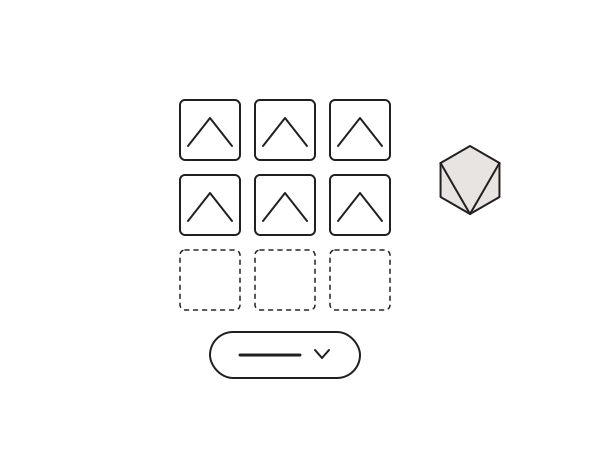
A client sends me forty photos for a portfolio page, and if I drop them all into a single Elementor Pro Gallery the page turns into an endless wall of images that shoves the footer and every call to action far below the fold. What I actually want is a tidy grid showing the first six, with a show more button that reveals the rest in batches. The Gallery widget has no built-in control for that, so I wrote a small script to add it.
Why the Gallery widget needs help
The Elementor Pro Gallery widget renders every image at once. There is no load-more or pagination option for the standard grid, so a long gallery is all-or-nothing. On a portfolio, a product page, or a case study, that hurts both the layout and the first impression, and on mobile it means a visitor has to scroll past dozens of items to reach anything below the gallery. It also drags down your Largest Contentful Paint, because the browser has to lay out and paint every tile before the page settles. A show more button fixes the UX and keeps the initial view clean, showing a curated first impression and letting the keen visitors ask for more.
The script
This waits for the page to load, hides every gallery item past the first six, and reveals the next batch with a soft fade each time the button is clicked. When everything is visible, the button hides itself. Use the Gallery widget from Elementor Pro, not the Basic Gallery widget, or the selectors will not match.
<script>
document.addEventListener("DOMContentLoaded", function() {
    const galleryItems = document.querySelectorAll('.elementor-gallery__container .e-gallery-item');
    const loadMoreButton = document.querySelector('.load-more-gallery-btn');

    let itemsToShow = 6;  // Initial number of images
    const itemsIncrement = 6; // How many to show on each click

    function updateGalleryVisibility() {
        galleryItems.forEach((item, index) => {
            if (index < itemsToShow) {
                if (item.style.display !== 'block') {
                    item.style.display = 'block';
                    item.style.opacity = '0';
                    item.style.transition = 'opacity 0.6s ease';
                    // Trigger fade-in with slight delay to ensure transition
                    setTimeout(() => {
                        item.style.opacity = '1';
                    }, 50);
                }
            } else {
                item.style.display = 'none';
                item.style.opacity = '0';
            }
        });

        // Hide button if all items are shown
        if (itemsToShow >= galleryItems.length) {
            loadMoreButton.style.display = 'none';
        }
    }

    // Initial setup
    updateGalleryVisibility();

    // Button click event
    loadMoreButton.addEventListener('click', function(e) {
        e.preventDefault();
        itemsToShow += itemsIncrement;
        updateGalleryVisibility();
    });
});
</script>
Under the hood it toggles each item's display and animates opacity, so the reveal feels smooth rather than a hard jump. There are no libraries and no jQuery, just a single DOMContentLoaded listener. Two values are worth knowing: itemsToShow sets how many images are visible at the start, and itemsIncrement sets how many more each click reveals. Both default to 6, so change them to match your grid, for example 9 initial and 3 per click.
How to install it
- Build your gallery with the Elementor Pro Gallery widget.
- Add an Elementor Button widget below it. In the button's Advanced tab, under CSS Classes, add
load-more-gallery-btn. - Drop an HTML widget at the bottom of the page and paste the script, or add it to your footer scripts.
This is browser-side JavaScript, so it belongs in an HTML widget, not in functions.php. I keep all my custom PHP in the Code Snippets plugin and leave the theme files alone, but front-end scripts like this one live with the page.
Still works in 2026
The script only relies on plain JavaScript and Elementor's stable e-gallery-item class, so it has kept working across Elementor updates. I am still using it on live galleries in 2026 with no changes. If a future release ever renames that class, the only edit you need is the selector at the top of the script, and everything else keeps working.
The snippet lives on GitHub: djaysan/elementor-gallery-show-more. Star it or fork it if it helps.
Need a hand with your Elementor build? Get in touch.