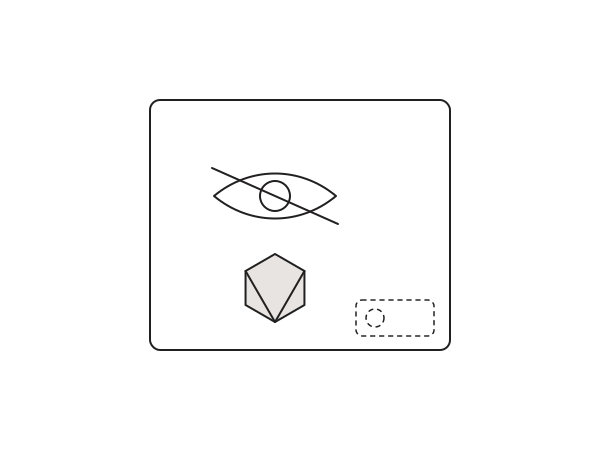
The reCAPTCHA v3 badge that floats in the bottom-right corner is great at stopping spam and terrible for a clean design. I use reCAPTCHA v3 on contact forms precisely because it works silently, with no puzzles for real visitors, but that badge is distracting. Here is how to hide the Google reCAPTCHA badge in Elementor properly, without breaking spam protection, and stay within Google's rules.
Is hiding it allowed?
Yes. Google's own reCAPTCHA FAQ permits hiding the badge on one condition: you must show the reCAPTCHA attribution somewhere on the page, linking to Google's Privacy Policy and Terms of Service. So this is a two-part job: hide the badge, then add the required text.
Hide the badge with CSS
Use visibility: hidden, not display: none. This matters: hiding the badge with display none has been reported to break the spam filtering, because the widget needs to stay in the layout to function. visibility hidden keeps it working while removing it from view.
.grecaptcha-badge {
  visibility: hidden;
}
Add it in Elementor > Site Settings > Custom CSS, or Appearance > Customize > Additional CSS.
Add the required attribution
To stay compliant, place this small line near your form or in the footer:
This site is protected by reCAPTCHA and the Google
<a href="https://policies.google.com/privacy">Privacy Policy</a> and
<a href="https://policies.google.com/terms">Terms of Service</a> apply.
That keeps the silent spam protection, loses the visual clutter, and respects Google's terms. It still works exactly this way in 2026.
Fighting form spam, or want a contact form that is both clean and protected? Let me help.